

Microsoft added battery percentage information to Windows 11 via a recent update. This allows users to quickly view how much power is remaining on their laptop. This feature adds battery percentage on the taskbar, right next to the battery icon. In this guide, let us learn how to enable this feature.
The battery percentage feature of Windows 11 simplifies how you view your laptop’s remaining battery power. You do not need to hover your cursor over the battery icon to check the remaining percentage. With this feature enabled, the battery percentage will display directly on the taskbar. This gives you with instant access to this important information at a glance.
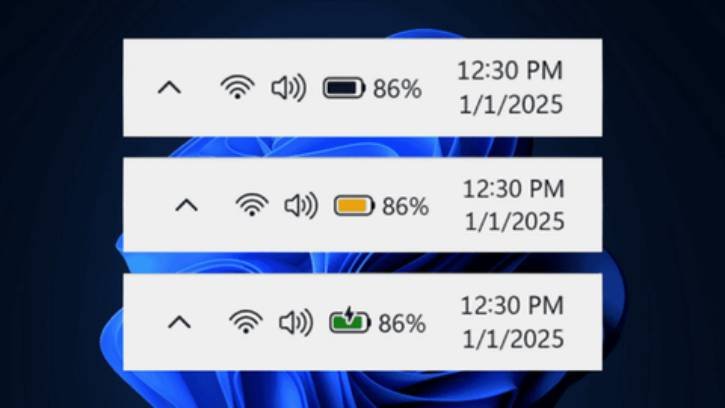
How to Enable Battery Percentage in Windows 11
1. Update your Windows 11 to the latest version (24H2).
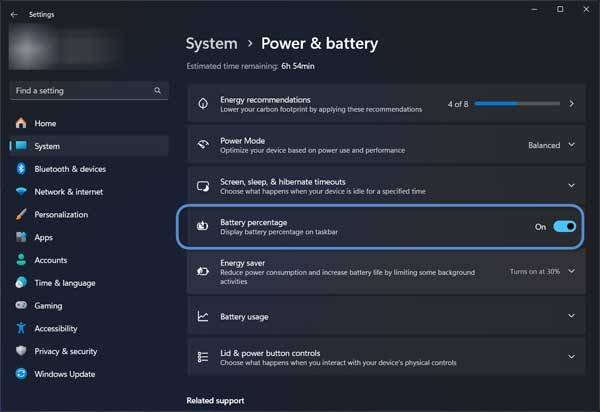
2. Open the Settings app and select System.
3. Click on the Power & battery option.
4. Toggle the Battery Percentage switch to the “On” position.
Why Battery Percentage Option Missing in Windows 11?
If you do not see the battery percentage settings on your Windows 11 laptop, it may be due to you have not updated your system to the latest version. Check for Windows updates and install them if any are available.
If the option is still missing in the Power & battery settings, you can enable it manually using the Windows configuration tool, Vivetool. Here’s how to do it.
ALSO READ: Reinstall Windows 11 Using the Fix Problems Using Windows Update Option
Enable Battery Percentage in Windows 11 Using ViveTool
1. Download the ViveTool-vx.x.x.zip file and unzip the file.
2. Copy the path of the extracted folder.
3. Next, open Command Prompt as administrator.
4. Type the following commands to navigate to the ViveTool folder and press Enter.cd c:\folder\path\ViveTool-v0.x.x (type cd and paste the copied path)
5. Now, execute below commands one-by-one:vivetool /enable /id:48822452vivetool /enable /id:48433719
6. Once the command executed and get successfully set feature configuration message, restart the computer.
7. To disable the feature, execute the below commands:vivetool /disable /id:48822452,48433719
ALSO READ: 3 Methods to Uninstall Latest Feature Updates in Windows 11
Whether you’re working on important tasks, watching videos, or browsing the web, having the battery percentage readily visible helps you make informed decisions about when to recharge your device, ensuring that you stay productive without unexpected interruptions.

