

Modern Standby (S0) is a latest feature of Windows, distinct from the traditional standby mode (S3) in older computers. This feature is similar to the standby mode on smartphones, allowing your computer to stay connected to the network while in standby mode and receive various alerts and notifications.
You might want to disable Modern Standby (S0) on your computer for various reasons, including problems with PC heating and battery performance issues.
In this guide, let us learn how to disable modern Standby (S0) on your Windows 11 computer and go back to Standby (S3) or the legacy or deep standby mode.
What is Modern Standby (S0) on Windows 11?
Modern Standby (S0) is the latest standby mode for both Windows 11 and 10. This mode enables your computer to boot instantly allowing you to resume your work without delay. To awake your computer from Standby (S0) mode, all you need to press the power button or open the Laptop lid.
This feature is similar to a smartphone’s standby mode. It means your Windows computer can remain constantly connected to the network, handle updates, notifications, and other background tasks, even while in standby mode.
How to Know If Your Computer Supports Modern Standby (S0)?
Note that not all Windows computers support modern Standby (S0) mode. The latest desktops and laptops support it. You can use the powercfg /a command to know whether your system supports the modern Standby (S0).
1. First, open the Command Prompt as administrator on your computer.
2. Next, type powercfg /a and press enter.
3. If you get the output “Standby (S0 Low Power Idle)”, it means your computer supports modern Standby (S0).
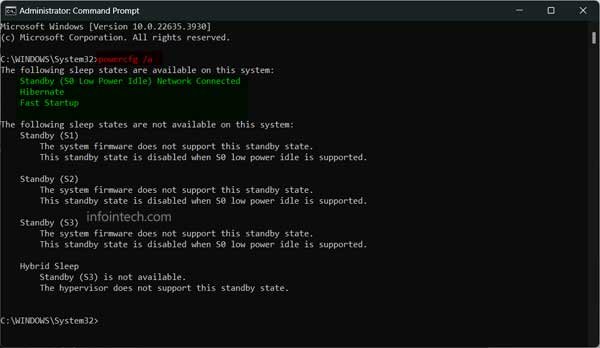
4. It will also identify whether the system is able to support network connectivity during sleep.
Microsoft recommends the newer S0 mode on your computer, but some of you might want to have the deep standby mode.
Now, if you want to disable the modern Standby (S0) and go back to legacy Standby (S3) mode in Windows 11 follow the below instruction.
Disclaimer: Please follow the below guide at your own risk. We cannot be held responsible for any issues that may arise. This guide is intended for use by technically talented users only.
How to Disable Modern Standby (S0) on Windows 11?
1. On your Windows 11 PC, open the Registry Editor.
2. Next, go to HKEY_LOCAL_MACHINE\SYSTEM\CurrentControlSet\Control\Power
3. Right-click the “Power” key, select “New”, and click the “DWORD (32-bit) Value” option.
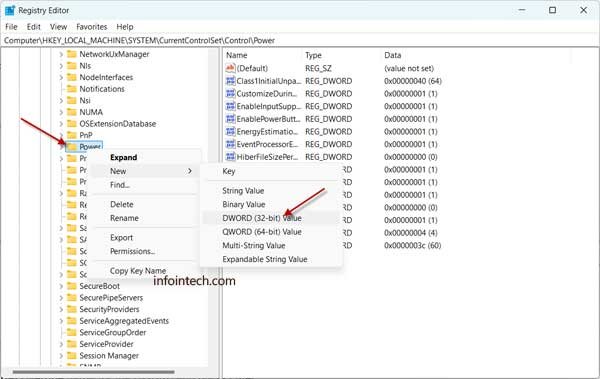
4. Enter “PlatformAoAcOverride” for the new DWORD and press Enter.
5. Next, right-click the newly created DWORD and choose the Modify option.
6. Set the value to 0 and click the OK to save the settings.
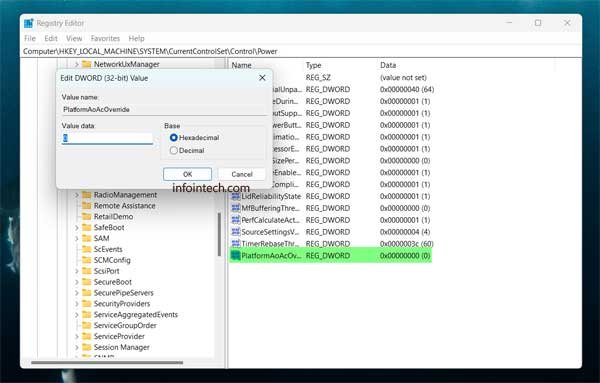
7. Finally, restart your computer to apply the changes.
That is all how to disable the Modern Standby. After you complete the steps, the system will stop using this feature.
If you wish to go back to the Modern Standby (S0) mode on your computer, simply delete the newly created DWORD “PlatformAoAcOverride” (right-click and select the Delete option).

