

The personalization option in Windows 11 lets you change the look and feel of your computer easily. You can customize your PC with wallpapers, accent colors and more with a few clicks. Some changes take a few extra steps, for example if you want to remove the arrow that appears on desktop shortcut icons.
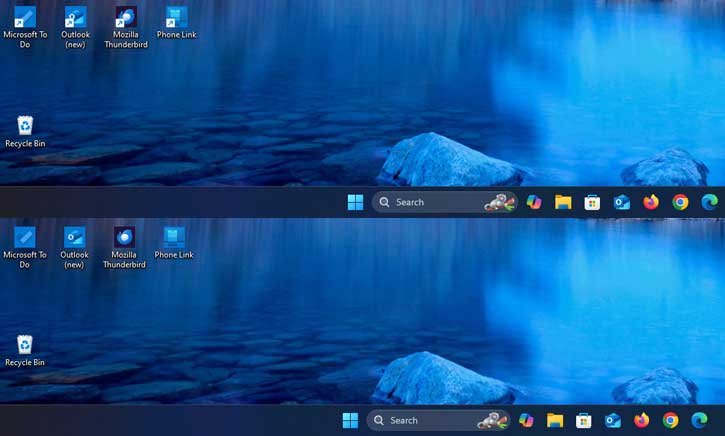
If you want your shortcut icons to look cleaner (see the screenshot above for comarison) you can remove the bule arrow that shows up on them in Windows 11. This guide will show you how to do it without needing third-party tools like Winaero Tweaker. Instead we’ll use a Windows Registry tweak to make the change.
The small blue arrow inside a square at the bottom left corner of desktop icons tells you that the icon is a shortcut. The arrow is tiny. Some people don’t like how it looks. Here’s how you can remove the arrow from your desktop shortcuts, on your Windows 11 PC.
How to Remove Blue Arrow From Desktop Shortcuts in Windows 11?
Disclaimer: Please follow the below guide at your own risk. We cannot be held responsible for any issues that may arise. This guide is intended for use by technically talented users only.
1. Open the Registry Editor on your Windows 11 PC.
2. Navigate to HKEY_LOCAL_MACHINE\SOFTWARE\Microsoft\Windows\CurrentVersion\Explorer
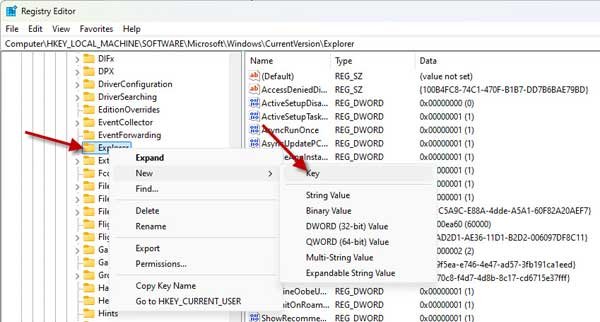
3. Next, right click the Explorer key, select New, click Key and name it Shell Icons.
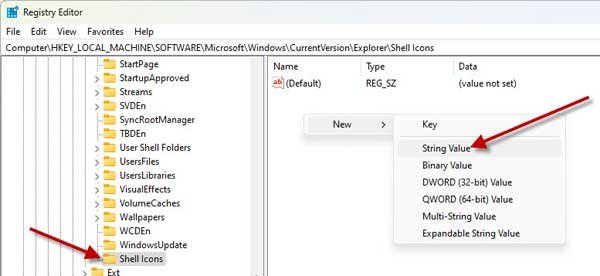
4. For Shell Icons, you need to create a new string value. For that, right-click on the right pane and select New > Key > String Value. Set the name to 29.
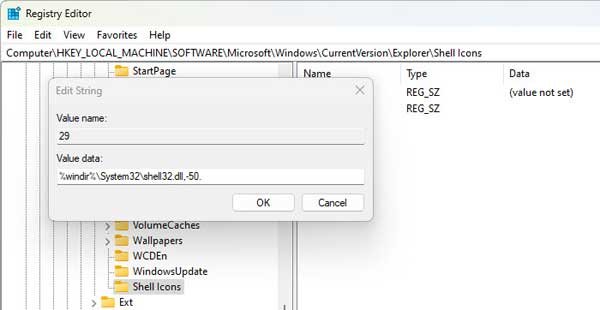
5. Now, double-click on the String value and set its Value data to: %windir%\System32\shell32.dll,-50.
6. Close the Registry Editor and restart your computer. There will be no arrow icon in the Shortcuts.
Note: To restore the old behaviour, navigate and delete the newly created Shell Icons key and restart the computer.
If you do not wish to edit the Registry, then you can use the Winaero Tweaker. Download the file from the link above, and unzip and install it on your computer. In the app, go to Shortcuts and Shortcut Arrow. Here you can select No arrow and click on the Restart Explorer button. The blue arrow will no longer be seen on Desktop icons.

