

ChatGPT Search, the AI search engine is now free for everyone. You can set ChatGPT Search as your default search engine on Microsoft Edge, Google Chrome, Firefox and other browsers such as Brave, DuckDuckGo, Opera and many more. Then you can browse the web. Get precise and accurate results from ChatGPT Search.
In this guide I will explain how to set ChatGPT Search as the default search engine on Chrome, Edge and Firefox in Windows 11. The ChatGPT Search Chrome extension works on Chromium‑based browsers such, as Chrome and Edge. Firefox users must set ChatGPT Search manually.
In this guide, let us learn how to set CgatGPT search engine as default in Chrome, Edge and Firefox browsers.
Set ChatGPT Search as Your Default Search Engine on Chrome
1. Open the Google Chrome browser and go to the chrome://settings/searchEngines page.
2. Click the Add button in the “Site search” section.
3. In the name field, enter ChatGPT.
4. In the Shortcut field enter @ChatGPT.
5. In the URL filed enter https://chatgpt.com/?q=%s&hints=search and click the Add button.
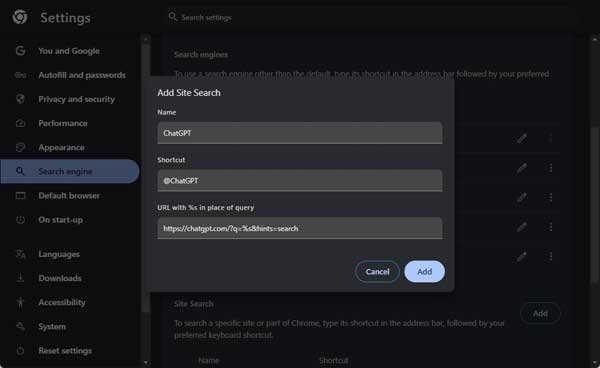
6. Next, click the three vertical dots menu next to ChatGPT, and choose the ‘Make default’ option.
Set ChatGPT Search as Your Default Search Engine on Microsoft Edge
1. Open the Edge browser and go to the edge://settings/searchEngines page.
2. Click the Add button in the “Address bar search engine” section.
3. In the search engine field, enter ChatGPT.
4. In the shortcut field enter @ChatGPT.
5. In the URL filed enter https://chatgpt.com/?q=%s&hints=search and click the Add button.
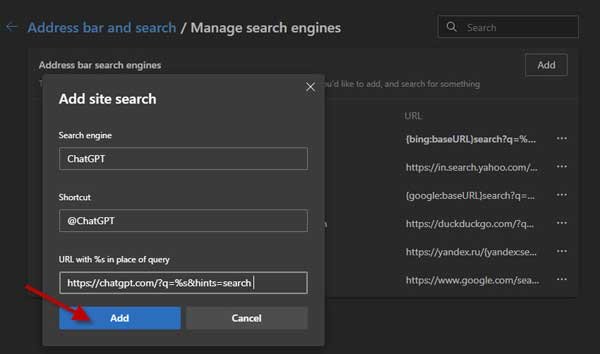
6. Next, click the three horizontal dots menu next to ChatGPT, and choose the ‘Make default’ option.
Set ChatGPT Search as Your Default Search Engine on Firefox
1. Open the Firefox browser and go to the about:preferences#search page.
2. Click the Add button under the “Search Shortcuts” section.
3. In the search engine name field, enter ChatGPT.
4. In the Engine URL filed enter https://chatgpt.com/?q=%s&hints=search.
5. In the Alias filed enter @ChatGPT and and click the Add Engine button.
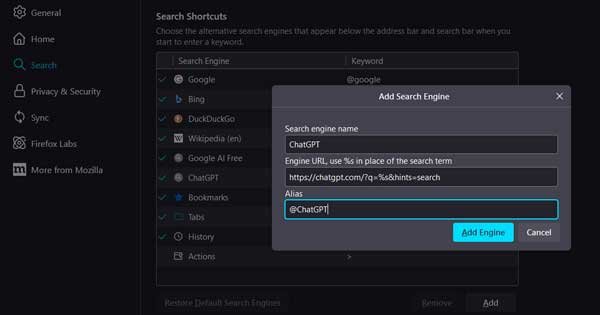
6. Next, click the Default Search Engine drop-down menu and choose ChatGPT from the list.
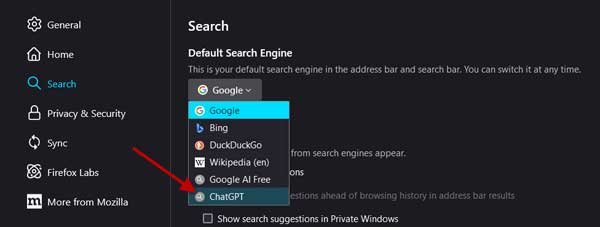
After you finish the steps to make ChatGPT Search your search engine in your browser you can just type your question into the address bar. The browser will then send the question to ChatGPT. ChatGPT will show the search results.
You should know that you must log in to your ChatGPT account to use the web search feature. If you do not log in you will not be able to use all the parts of ChatGPT Search.

