

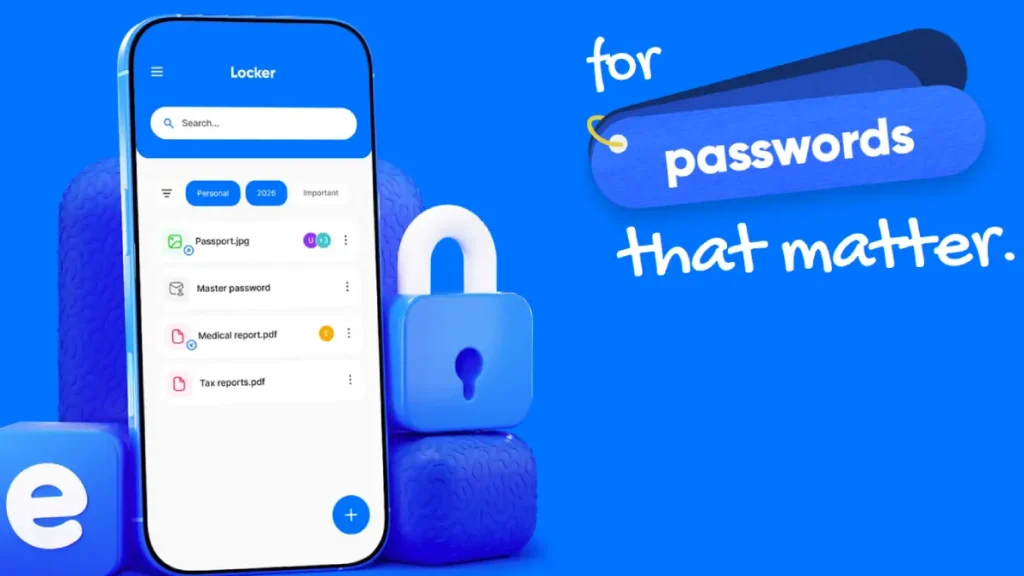
Ente Locker is a free, open-source file locker app available for Android and iOS that protects your sensitive data (documents, IDs, credentials, etc.) with end-to-end encryption. Developed by Ente, the privacy-focused company behind Ente Photos, Locker offers a straightforward way to store and organize important files without compromising security. Your data is encrypted with your keys before it leaves your device, meaning only you can access it.
Why Choose Ente Locker to Keep Your Data Safe?
Ente Locker app has an intuitive interface that makes it accessible to users of all technical levels, from beginners to advanced users. And most importantly, all your files are encrypted locally on your device, ensuring complete privacy and security.
A feature that I like in Ente Locker is Thing tracker. This feature lets us save the name and location of real-world items, helping us remember where important things are without leaving a visible trace. Another feature is Collection, that let us organize files into collections such as “Medical Records,” “Financial Documents,” or “Legal Papers” for easier navigation.
The sharing option, like Google Drive, but with encryption, is also an important feature. Ente Locker lets you share items securely with others using generated links.
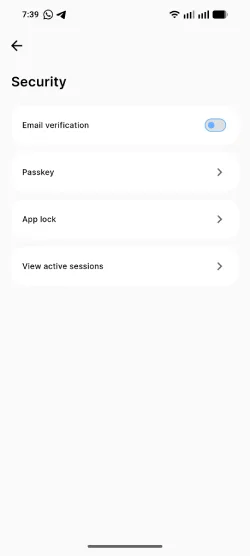
Also, you can protect your vault with a passkey, device screen-lock method, or email verification.
How to Use Ente Locker to Protect Your Important Data
1. Download and install the app from Play Store or App store
2. After installation, create an account using an email address
3. To add documents, images and videos to Ente Locker, simply tap the plus-sign button in the bottom-right corner and upload the files
4. Now, select an option, for example, Document to save your important documents, Thing option to save locations of real-world items
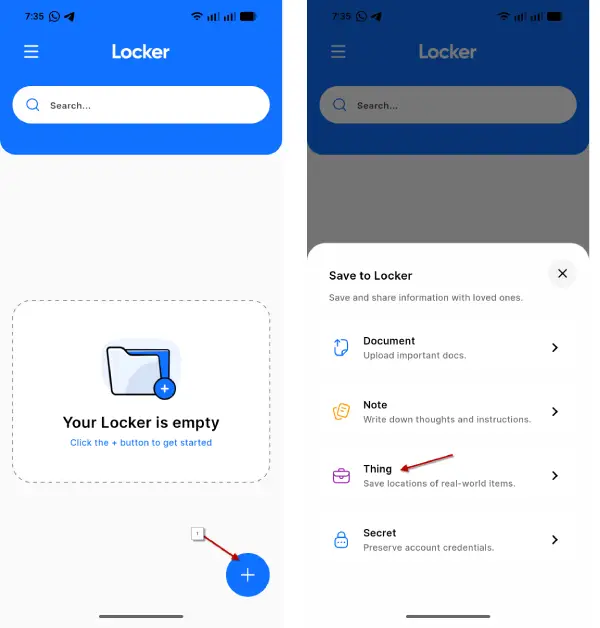
5. You can create secure notes using the Notes option and use the Secret feature to store account usernames and passwords
6. To protect your important data with Pass key, app lock and email verification, tap the hamburger menu, select Security tab and set each option.
Note that Ente Locker uses a shared storage model with Ente Photos. Your free plan includes 100 items in Locker and 10GB of cloud storage across both apps. If you need more space, the paid plan costs around $2 per month and allows you to store up to 1,000 files with 100GB of storage.
Conclusion
Ente Locker is an excellent choice for anyone seeking a simple yet secure way to protect sensitive documents and files on Android and iPhone. Its combination of ease of use, strong encryption, and unique features like the Thing tracker makes it stand out from generic cloud storage solutions. With its independently audited security and open-source code, you can trust that your important data is in good hands.

