

If you use Google Sheets every day, you already know the truth: clicking your mouse again and again slows you down. The good news is that keyboard shortcuts can make your workflow feel smoother—especially when you’re managing multiple spreadsheets, formatting data on the fly, or moving through complex formulas.

Below are 16 essential Google Sheets keyboard shortcuts you can start using right away. They’re practical, easy to remember, and designed to help you stay focused on the work instead of hunting for buttons.
Table of Contents
Google Sheets Keyboard Shortcuts: 16 Essential Commands to Work Faster
1) Switch Between Sheets Faster
When your spreadsheet has multiple tabs, these shortcuts keep you moving without breaking your flow.
Switch to the previous sheet:
Windows/ChromeOS: Alt + ↑
Mac: Option + ↑
Switch to the next sheet:
Windows/ChromeOS: Alt + ↓
Mac: Option + ↓
2) Insert the Current Date and Time
Need a timestamp quickly?
Insert current date and time:
Windows/ChromeOS: Ctrl + Alt + Shift + ;
Mac: Command + Option + Shift + ;
3) Format Numbers in One Keystroke (Decimal, Time, Date, Currency)
Formatting manually takes time. Use these to apply common formats quickly:
Format as decimal: Ctrl + Shift + 1
Format as time: Ctrl + Shift + 2
Format as date: Ctrl + Shift + 3
Format as currency: Ctrl + Shift + 4
4) Format Percentages and Scientific Notation
These are especially handy for reports and data cleaning:
Format as percentage: Ctrl + Shift + 5
Format as scientific notation: Ctrl + Shift + 6
5) Display a List of All Sheets
When you need to jump to the right tab but don’t want to scan the sheet names:
Show all sheets list: Alt + Shift + K
(Mac: Option + Shift + K)
6) Clear Formatting (Reset Selection Fast)
If you’ve formatted a cell but don’t like the result, clear formatting quickly:
Clear selection formatting: Ctrl + \
(Mac: Command + )
7) Apply an Absolute Reference
Formulas get easier when you know how to lock a cell reference.
Make reference absolute (F4): F4
(Mac: fn + F4)
8) Insert a New Sheet
Create a new tab quickly without using menus:
Insert new sheet: Shift + F11
(Mac: Shift + fn + F11)
9) Search Menus
Instead of scrolling menus, use the keyboard to jump directly to commands:
Search menus: Alt + /
(Mac: Option + /)
10) Show Formulas Instead of Results
Useful for auditing spreadsheets and debugging formulas:
Display formulas: 'Ctrl + \' '
(Mac: 'Command +' ' )
11) Show a List of Keyboard Shortcuts
When you forget a shortcut, pull up the shortcuts list instantly:
Open shortcuts list: Ctrl + /
(Mac: Command + /)
Essential Google Sheets Shortcut cheatsheet
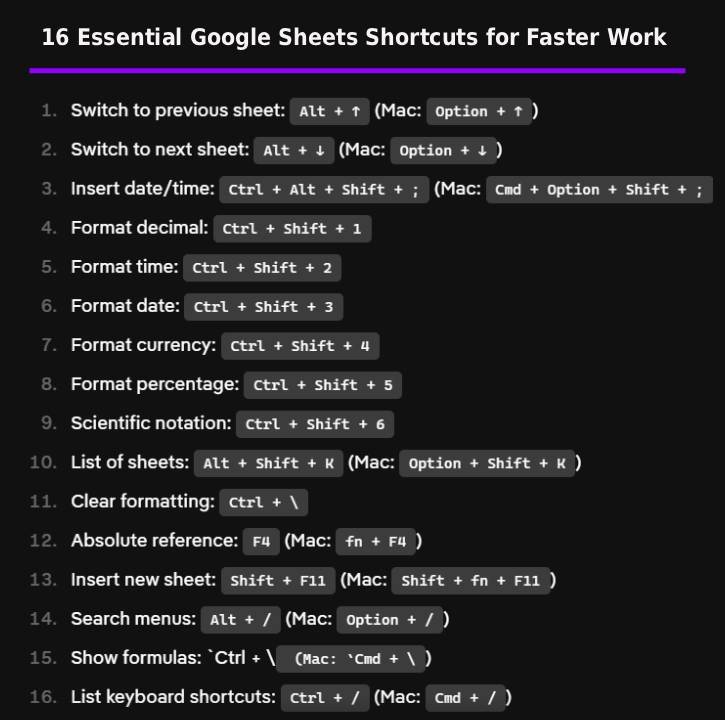
Quick Tip: Start With the Shortcuts You’ll Use Daily
If you want to get value fast, focus first on these: switch sheets, date/time insert, number formatting, clear formatting, absolute references, and search menus. Once they become muscle memory, your spreadsheets will feel dramatically faster.

