

If you want to select multiple files in Windows 11, the easiest way is to use the CTRL + A shortcut key. Alternatively, you can hold the SHIFT key and use the mouse or arrow keys to select consecutive multiple files. You can also use the mouse directly, by adding a checkbox to each file and folder so you can select multiple files with ease.
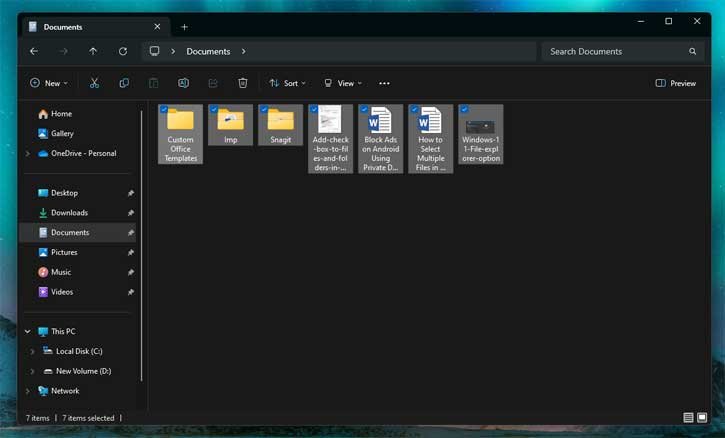
The only drawback of using the CTRL + A shortcut key or the SHIFT key for selecting multiple files in Windows is that occasionally, these methods may inadvertently select unwanted files. But, adding a check box to each file and folder will solve this issue.
Windows 11 lets you add check box to each file and folder. If you want to choose a specific file first, and last file in a series and leave out the others, you can use this feature of Windows 11 File Explorer.
How to Add Check Box to Files and Folders in Windows 11?
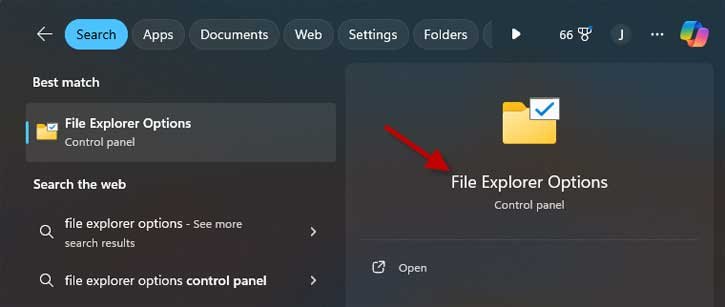
1. Open Start menu and type File Explore Options in the search box.
2. Click on the File Explore Options.
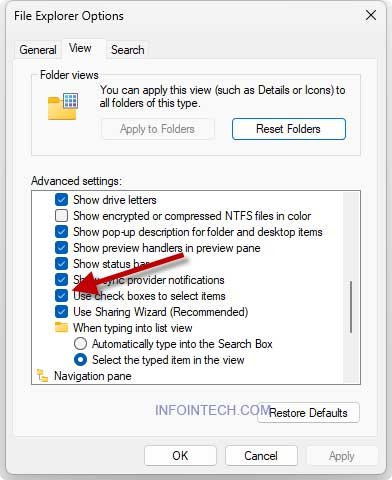
3. In File Explore Options window, select View tab.
4. Scroll down and enable Use check box to select items.
5. Click OK to save the settings.
This will enable check box to each file and folder in File Explorer. Checkboxes make it easier to select and deselect multiple files, whichever order you want. This method may more useful on touch screens. However, you may still need to use the CTRL key to select multiple files on your PC.
Other Methods to Select Multiple Files in Windows 11
The File Explorer ribbon includes a few menu commands that facilitate selecting multiple files without requiring any keyboard input.
To use it, open File Explore, click the horizontal dots menu and choose the Select all to highlight all the items in the folder. There is an Invert selection command that lets you swap the selection and highlight only any of the unselected files.
Conclusion
Adding checkboxes to files and folders in Windows 11 is a way to make managing files easier. Using this feature through File Explorer Options gives you a way to pick multiple items. You do not need to use keyboard shortcuts or complicated click-and-drag methods. This way is especially helpful if you work with a lot of files. It is also good if you use a touch screen Windows computer. It helps you avoid picking items you did not mean to pick.

