

Securing a PDF document with a password is an easy task. There are various offline and online tools available for encrypting PDF files. In this guide, let us know how to use Microsoft Word to password protect your sensitive PDF documents.
There are several free web-based PDF editing tools available (such as Adobe Acrobat Online, iLovePDF, Smallpdf, and applications like PDFEncrypt), but you can avoid using third-party tools if you have Microsoft Word. Additionally, relying on online tools may not always be secure, particularly if your PDF files contain sensitive information.
How to Password Protect PDF Files Using Microsoft Word
1. Open your PDF file in MS Word (right-click the PDF file, select “Open with” and choose Word from the list).
2. You will see a warning message indicating that your PDF will be optimized for the Word app, which may result in layout issues. Click “OK” to proceed.

3. The PDF will open in Word. Go to the top-left corner and click “File” and navigate to More > Export > Create PDF/XPS Document > and select Create PDF/XPS (see screenshot below).
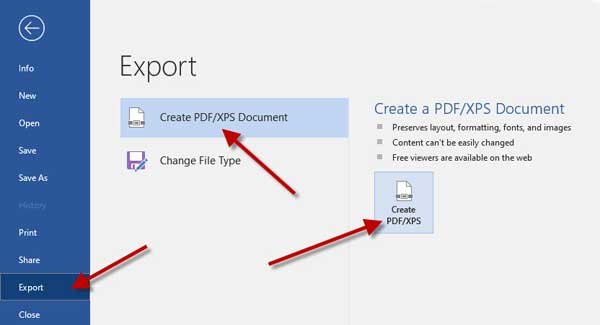
4. In the “Publish as PDF or XPS” window, click the “Options” button.
5. In the popup window, check the box for “Encrypt the Document With a Password” and click “OK“
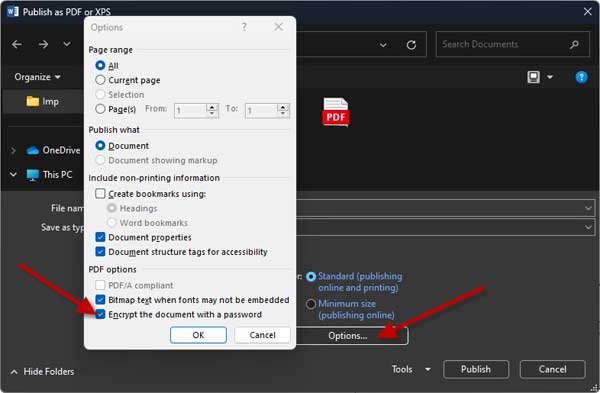
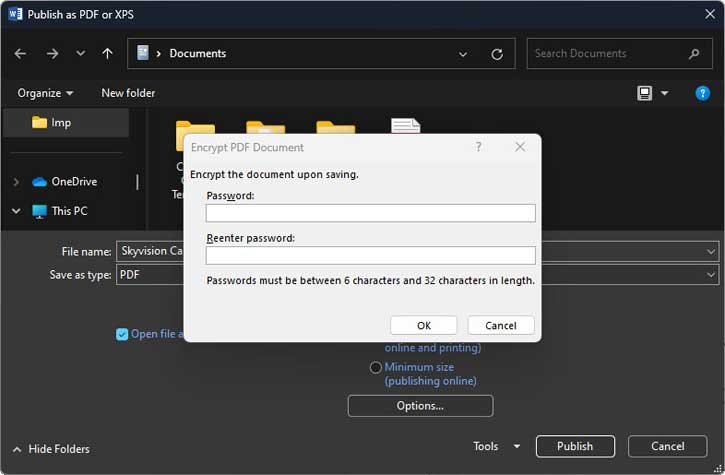
6. Next, enter your desired password in the Password field and confirm it by re-entering it in the Reenter Password field.
7. Click “OK” to save your settings, then choose the location where you want to save the PDF file and select “Publish.”
That’s all how to protect your PDF files on your Windows 11 computer using Microsoft Word.
IMPORTANT: This method is most effective for PDF files with minimal formatting. If your PDF contains extensive formatting, you may want to use applications like PDFEncrypt or online tools such as Adobe Acrobat Online, iLovePDF, or Smallpdf.

