

Microsoft Word has a built-in option to create QR codes with just a few clicks. You do not need to use the online QR code generators or third-party add-ons. You can generate a QR code directly within Word, making it quick and easy to create and insert the code into your document without having to download any images.
Whether for personal use, business marketing, or educational purposes, QR codes can add significant value to your documents. In this guide, let us learn how to create QR Code in Microsoft Word without any add-ons.
How to Create QR Code in Microsoft Word
1. Open Microsoft Word and press Ctrl+F9 to insert a pair of curly brackets.
2. Inside the brackets, type DISPLAYBARCODE "type required content" QR \Q3, then press the F9 key.
3. For “type required content” you can enter required content, webpage URL, contact details, or any other information.
3. Your QR code will now be displayed.
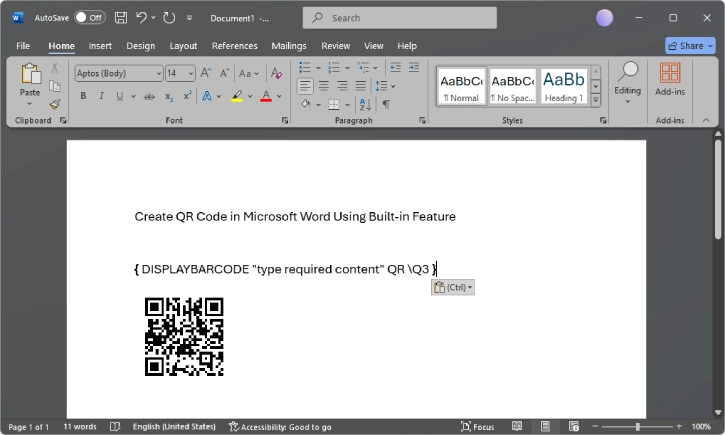
Creating a QR code in Microsoft Word can be useful for enhancing functionality and presentation of your documents. As you know, QR codes allow you to quickly access information by scanning the code with your smartphones. This is particularly useful for sharing website URLs, contact information, event details, etc.
ALSO READ: How to Digitally Sign a Google Docs
Benefits of Using QR code in Microsoft Word Documents
Easy Access to Information: QR codes can store various types of information, such as URLs, contact details, or text. By embedding a QR code in a Word document, you provide readers with a quick way to access this information using their smartphones.
Enhanced Engagement: Including a QR code can make your document more interactive. For example, in marketing materials, a QR code can link to a promotional website, video, or social media page, encouraging readers to engage further with your content.
Convenience: Instead of typing out long URLs or contact information, users can simply scan the QR code. This convenience can improve user experience and increase the likelihood of them following through with the action you want them to take.
ALSO READ: How to Digitally Sign a Word Document in 5 Simple Steps
Professional Look: Adding a QR code can give your document a modern and professional look. It shows that you are utilizing current technology to enhance communication.
Tracking and Analytics: If you link the QR code to a trackable URL, you can gather data on how many people scanned the code and what actions they took afterward. This can be useful for marketing analysis and understanding audience engagement.
Versatility: QR codes can be used in various types of documents, including flyers, brochures, reports, and presentations. This versatility makes them a valuable tool in many contexts.
Customization: You can create customized QR codes that match your branding, making them visually appealing and aligned with your overall design.
In short, creating a QR code in Microsoft Word can enhance the functionality and appeal of your documents, making it easier for readers to access information and engage with your content.

