

In Excel, LOOKUP functions are formulas that search for a value in a table and return a corresponding value from another column or row. If you’re a beginner, the three essential LOOKUP functions to learn are VLOOKUP (Vertical lookup), HLOOKUP (Horizontal lookup), and XLOOKUP (Modern & flexible lookup).
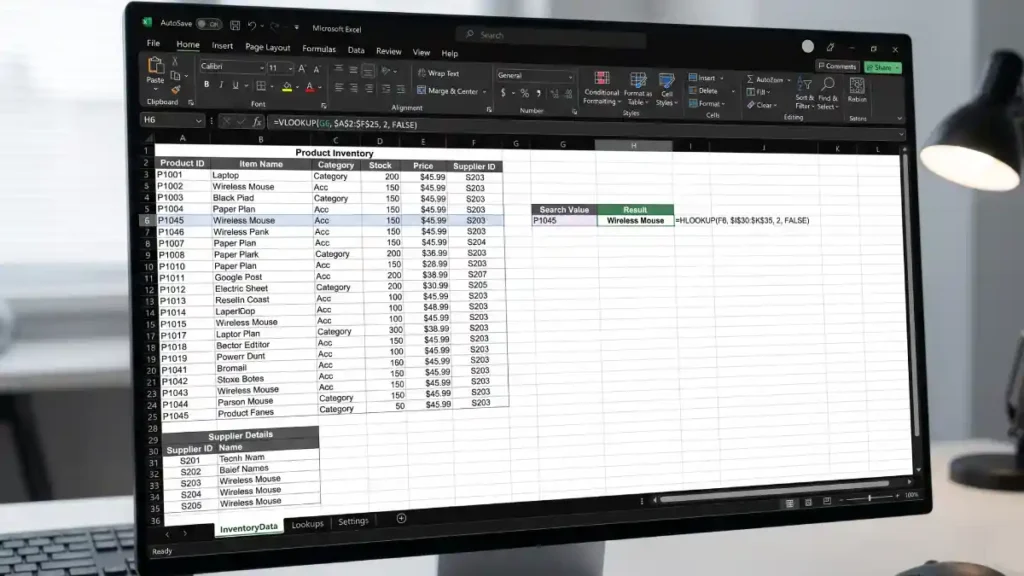
This article compares the Excel VLOOKUP, HLOOKUP, and XLOOKUP functions, explores their syntax, and explains when to use each one. If you are new to Excel, this information may be useful.
What Each LOOKUP Does
- VLOOKUP: Look for a value in the first column and return a value from the same row in another column.
- HLOOKUP: Look for value in the first row and returns a value from the same column in another row.
- XLOOKUP: Look for a value in any row or column and returns a value from any direction. More powerful and flexible.
Syntax:
- =VLOOKUP (lookup_value, table, array, col_index_run, (range lookup).
- =HLOOKUP (lookup_value, table, array, row_index_run, (range lookup).
- =XLOOKUP (lookup_value, lookup_array, return_array [if_not_found], [match_mode], [serach_mode])
Key Features of Each LOOKUP:
- VLOOKUP: Simple and widely used, can only look right, Column index number is required, less flexible.
- HLOOKUP: Simple and widely used, can only look down, Row index number is required, less flexible
- XLOOKUP: Looks in any direction, no need of Column or Row index numbers, Handles missing values easily, more flexible and powerful.
Example (Use Case of Each LOOKUP):
- VLOOKUP: Find an employee’s salary using Employee ID (ID in first column, Salary in next column)
- HLOOKUP: Find quarterly sales for a product (Quarter in first row, sales in row below)
- XLOOKUP: Find any data from any table range-no matter where the lookup value is placed.
Best for:
VLOOKUP: Quick vertical lookup in simple data
HLOOKUP: Quick horizontal lookups in simple data
XLOOKUP: All types of lookups. Best for modern Excel users
ALSO READ: How to Clean Cluttered Data in Excel Using Power Query
Conclusion
Excel’s LOOKUP functions are indispensable tools for anyone working with data, and understanding the differences between VLOOKUP, HLOOKUP, and XLOOKUP will dramatically improve your spreadsheet efficiency. Each function serves a specific purpose in your data analysis toolkit.
VLOOKUP and HLOOKUP remain the foundational functions that have powered Excel for decades. They’re straightforward, widely supported across all Excel versions, and perfect for beginners tackling simple vertical or horizontal lookups. If you’re working with legacy spreadsheets or need maximum compatibility, these functions will reliably get the job done.
However, XLOOKUP represents the future of Excel lookups. If you have access to modern versions of Excel (Microsoft 365), XLOOKUP should become your go-to function. Its flexibility – searching in any direction, eliminating the need for index numbers, and handling missing values gracefully – makes it the superior choice for complex data scenarios and reduces the likelihood of errors that can plague VLOOKUP formulas.

