

Using shortcuts in Excel lets you perform common tasks instantly, eliminating the need to navigate menus and click multiple times. With these time-saving techniques, you can dramatically increase your spreadsheet efficiency and reduce repetitive strain on your wrists.
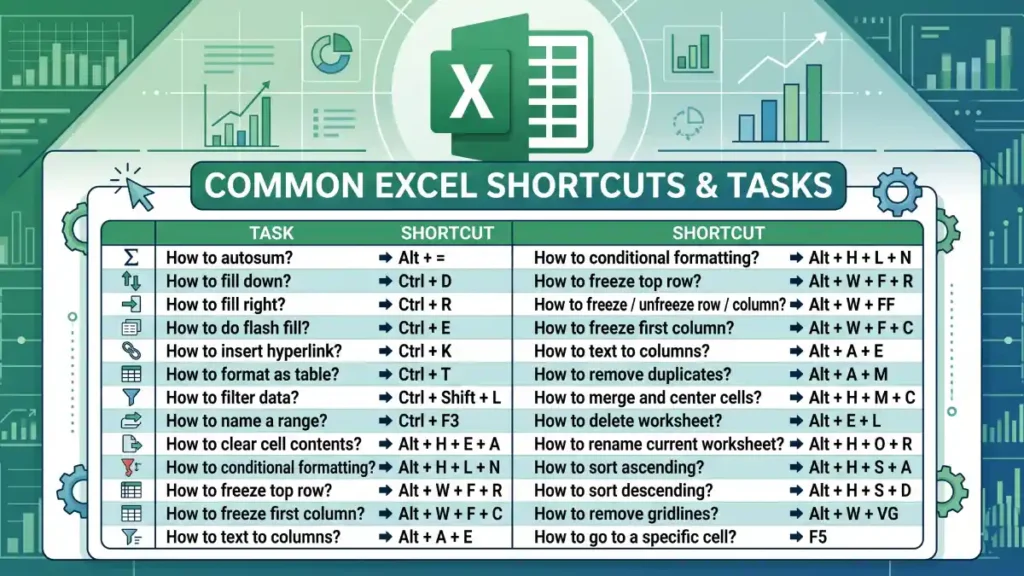
This article puts together twenty plus of the most useful, time-saving Excel shortcuts for daily work. Shortcuts for autosum, filtering data, naming a range, freezing rows, clearing cell contents, and inserting hyperlinks are quite useful and commonly used by spreadsheet professionals.
Note that shortcuts make you less dependent on specific Excel versions or regional settings. Most shortcuts work consistently across Excel on Windows, Mac, and even some online versions, making your skills more portable.
Table of Contents
Excel Shortcuts for Daily Work
| TASK | SHORTCUT |
| How to autosum? | Alt + = |
| How to fill down? | Ctrl + D |
| How to fill right? | Ctrl + R |
| How to do flash fill? | Ctrl + E |
| How to insert hyperlink? | Ctrl + K |
| How to format as table? | Ctrl + T |
| How to filter data? | Ctrl + Shift + L |
| How to name a range? | Ctrl + F3 |
| How to clear cell contents? | Alt + H + E + A |
| How to conditional formatting? | Alt + H + L + N |
| How to freeze top row? | Alt + W + F + R |
| How to freeze / unfreeze row / column? | Alt + W + FF |
| How to freeze first column? | Alt + W + FC |
| How to text to columns? | Alt + A + E |
| How to remove duplicates? | Alt + A + M |
| How to merge and center cells? | Alt + H + M + C |
| How to delete worksheet? | Alt + E + L |
| How to rename current worksheet? | Alt + H + O + R |
| How to sort ascending? | Alt + H + S + A |
| How to sort descending? | Alt + H + S + D |
| How to remove gridlines? | Alt + W + VG |
| How to go to a specific cell? | F5 |
| How to jump between data blocks quickly? | Ctrl + Arrow Keys |
| How to sort data (varies by Excel version)? | Alt+D+S |
ALSO READ: How to Clean Cluttered Data in Excel Using Power Query
Getting Started
Of course, by hearting all the shortcuts are a big task. So, start with 5 to 10 shortcuts that apply to your most frequent tasks, rather than trying to memorize dozens at once.
Print a cheat sheet and keep it by your desk for the first week. Within a few days of regular use, these combinations will become automatic. As they solidify, gradually add more shortcuts to your repertoire.
The Real Benefits of Using Shortcuts on Spreadsheet
Time savings compound exponentially as you use more shortcuts. A task that takes 10 clicks might take just 2 keystrokes with the right shortcut. Over 100 spreadsheet tasks daily, this difference becomes hours of recovered time weekly.
Reduced mouse dependency also improves ergonomics. Excessive mousing can contribute to repetitive strain injuries. Shortcuts keep your hands in the typing position, which is generally more comfortable for extended work sessions.
Enhanced professionalism is another underrated benefit. Colleagues and supervisors notice when someone navigates Excel with effortless speed. It signals competence and mastery of your tools.

