

Google Gemini has no official application for Windows yet, but you can install it as a PWA (Progressive Web Application) and launch it from your Windows 11 or 10 Start Menu and taskbar. It will bring the same feel and functionality as a native application. No more need to open your browser to access Google’s AI-powered chatbot, Gemini.
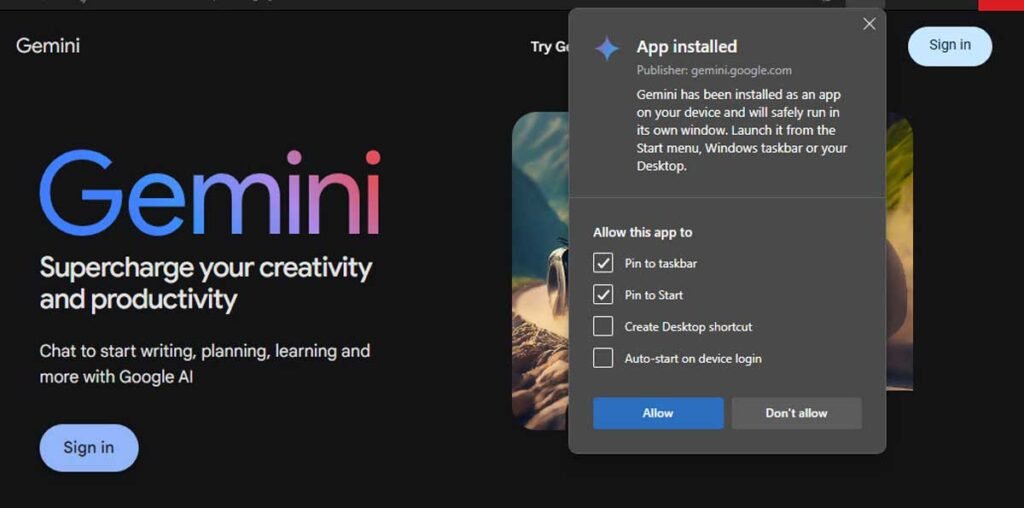
Once you install the Gemini app on your Windows 11 or 10 computer, you can move it around the screen, resize, or use it in full-screen mode, just like any other Windows app. Installing the Gemini app using the Microsoft Edge browser is easy, just like installing the Windows Copilot PWA app. Google Chrome users can also install the Gemini app using Chrome’s new Universal Web App install feature.
Table of Contents
How to Install Gemini in Windows 11 Using Microsoft Edge?
1. Launch the Microsoft Edge browser on your Windows PC.
2. Go to the Google Gemini website and sign in to your Google account.
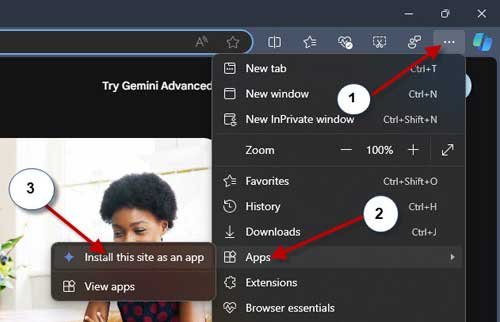
3. Next, click the three-dot menu, choose Apps, and click the “Install This Site as an App” option.
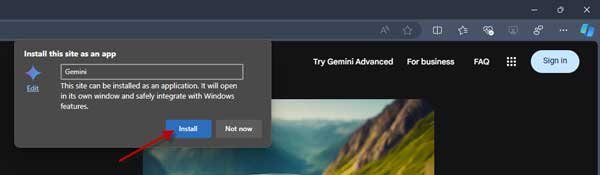
4. You’ll see an “Install This Site as an App” box. Click the Install button to install Gemini on your computer.
5. Edge will create and launch Gemini as a native app.
6. It will add a shortcut to the app on your desktop and Start menu, and also offer to place one on your taskbar.
How to Install Gemini PWA on Using Google Chrome in Windows 11/10?
1. Launch Google Chrome, go to the Gemini site, and sign in to your account.
2. Click the three-dot menu at the top right and choose the ‘Cast, save, and share‘ option.
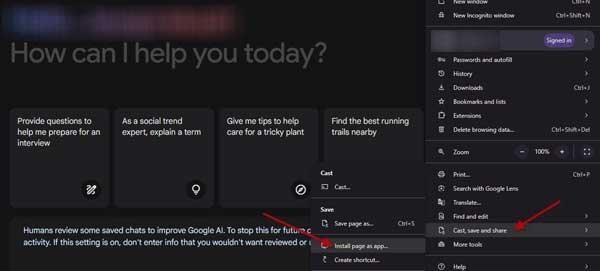
3. Next, click the ‘Install page as app‘ option. You will get an “Install This Page as an App” box.
4. Next, click ‘Install [site name]‘ to turn Gemini into a PWA.
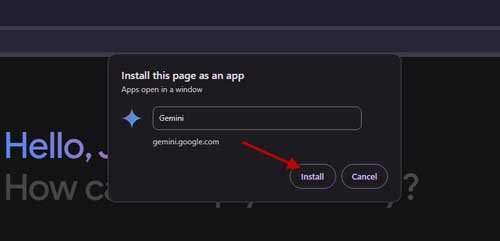
5. It will add a shortcut to the app on your desktop and Start menu, and also offer to place one on your taskbar.
How to Uninstall the Gemini App on Windows
If you’d like to remove Gemini from your PC, you can uninstall it like any other app. Here is how to do it.
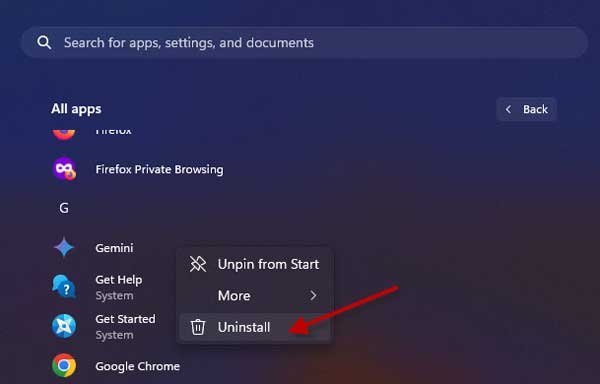
If you have created Gemini using Microsoft Edge, open the Start screen, and select All apps. Now, go to Gemini, right-click and select the Uninstall option. It will remove the Gemini app from your computer.
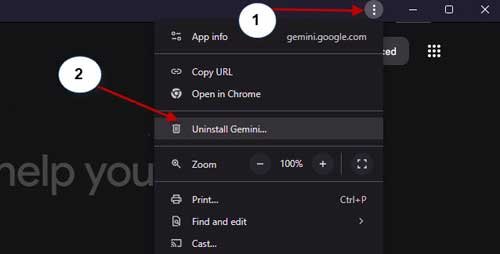
If you have created Gemini using Chrome, open the Gemini PWA app, click on the three-dot menu at the top right and choose the Uninstall Gemini option. It will remove the Gemini app from your PC.
That is all how to install (and uninstall) Google Gemini as an app in your Windows 11 or 10 computer. You can launch and play around with your AI-powered chatbot Gemini by clicking the app icon.

