

Microsoft removed the WordPad program from Windows 11 with the 24H2 update. For many users WordPad was a simple but useful alternative text editor to the more advanced Microsoft Word program. If you still want to use the old WordPad you can easily get it back with a simple workaround.
Microsoft starts rolling out Windows 11 24H2 update which removes WordPad and other features. However you can still get WordPad back by using a workaround if you prefer to keep using it instead of using free alternatives like LibreOffice.
Even though the wordpad.exe file has been removed from Windows 11 version 24H2, the folder for it is still present. This means you can easily reinstall WordPad and keep using it. Here is how to do it.
How to Install Official WordPad in Windows 11 24H2
1. On a computer with Windows 11 version 23H2 or older version, navigate to C:\Program Files\Windows NT\Accessories.
2. Copy all files inside the Accessories folder (WordpadFilter.dll, wordpad.exe, en-US, etc.) to a USB stick.
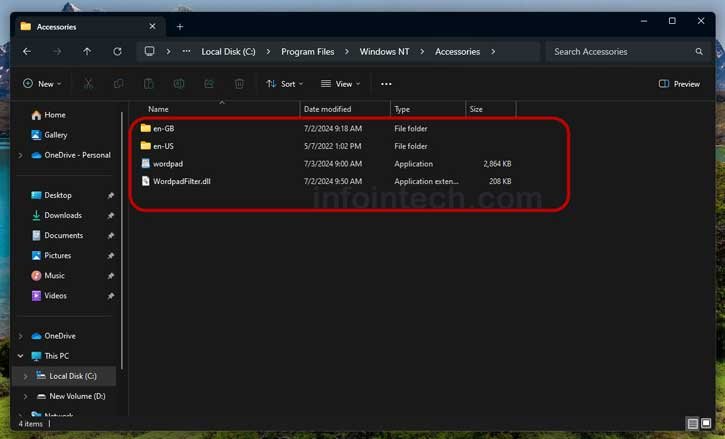
3. Connect the USB stick to the computer with Windows 11 version 24H2 and paste all WordPad files into a folder.
4. Now, right-click on the wordpad.exe file and select “Show more” options.
5. Next, select “Send to” and then click “Desktop (create shortcut)” to create a shortcut.
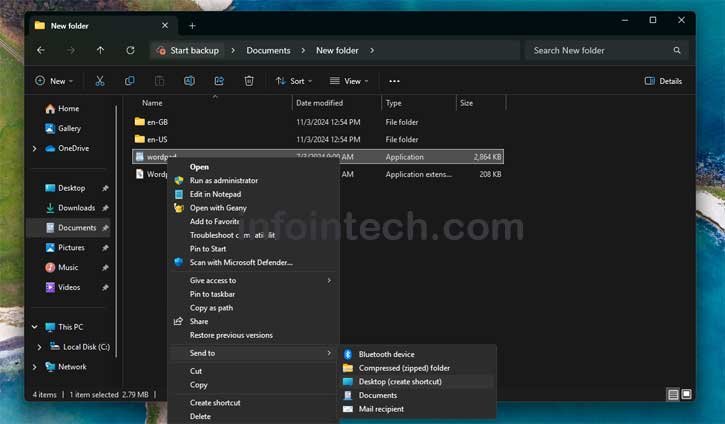
6. Copy the newly created wordpad.exe shortcut and navigate to C:\ProgramData > Microsoft > Windows > Start Menu > Programs. Paste the shortcut there and rename it if necessary.
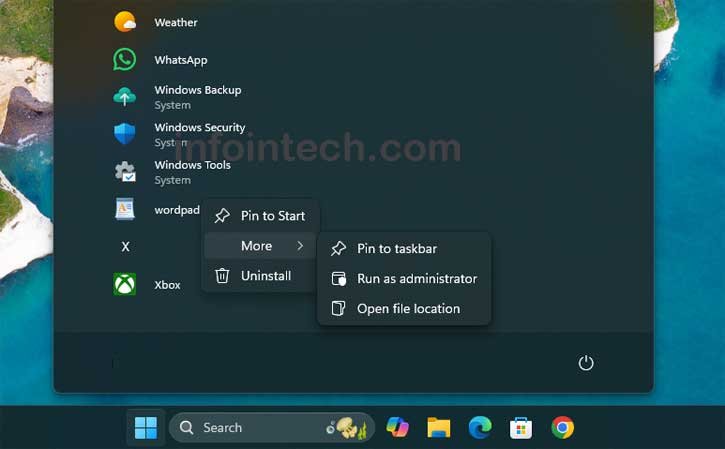
7. Now, open the Start menu, click All apps, and scroll down to WordPad to open it. You can pin it to the Start menu or the taskbar for quick access.
Important: You have installed WordPress on Windows 11 24H2. You must also make sure that WordPad is set as the default app for certain file types.
To do this go to Settings > Apps > Default apps. In the list of apps. Select WordPad. Then choose which file types you want WordPad to open by default—like RTF files, for example.
When you double-click an RTF file now it will open in WordPad of another text editor. Setting WordPad as the default app for your file types is a key step to making sure WordPad works correctly on Windows 11 24H2.
Pros and Cons of Installing WordPad in Windows 11 24H2:
Pros:
You can keep using WordPad if you like its design and familiar interface.
WordPad is a program that runs fast for basic editing tasks.
The WordPad files and folders are still on Windows 11 24H2 so you can reinstall it easily when needed.
Cons:
Microsoft will no longer update WordPad with features or security fixes.
As time passes WordPad may not support file formats or work well with other software.
It does not offer tools like Microsoft Word so you lose access, to more powerful features.

