

Windows 11 has a robust built-in security features, making additional security software unnecessary. Its integrated security tools, including Tamper Protection, Cloud-Delivered Protection, Automatic Sample Submission, and Real-Time Protection, provide comprehensive protection against malicious activities.
To enhance the security of your Windows 11 system, it’s important to ensure that all protective features of Microsoft Security software are enabled.
One of the key features to activate in Windows 11 is Tamper Protection, which plays an important role in safeguarding your PC. Let us learn what is Tamper Protection and how to enable it on your Windows 11 PC.
What’s Tamper Protection in Windows 11 PC
Tamper Protection is animportant part of Microsoft’s Security app that strengthens the protection of Windows 11 systems. Its primary function is to prevent malicious software from disabling or altering critical features of Microsoft Defender Antivirus.
If any harmful software attempts to modify security settings via the Windows registry, Tamper Protection will intervene and block those actions. Tamper Protection effectively prevents the following actions by malicious software on a Windows 11 PC:
- Deactivation of virus and threat protection
- Disabling real-time protection
- Turning off behavior monitoring
- Disabling antivirus programs (such as IOfficeAntivirus (IOAV))
- Stopping cloud-delivered protection
- Removing security intelligence updates
On most Windows 11 PCs, Tamper Protection is enabled by default. However, you should verify it in the Windows Security settings. If you are not using any other antivirus software, make sure to activate Tamper Protection, Cloud-Delivered Protection, and other security features on your computer.
ALSO READ: Why and How to Use PowerShell to Scan Windows 11 PC for Viruses
How to Enable Tamper Protection in Windows 11 for Enhanced System Security
1. In the Windows search, type “Windows Security.”
2. Click on “Windows Security” from the search results.
3. Select “Virus & threat protection” or go to Settings > Privacy & Security > Windows Security > Virus & threat protection.
4. Under the Virus & threat protection settings, click on “Manage settings.”
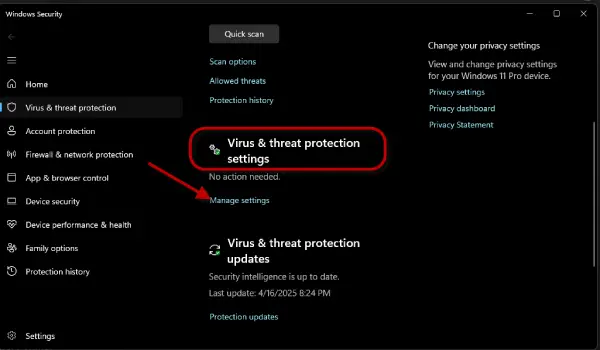
5. Scroll down and toggle the Tamper Protection option to turn it on.
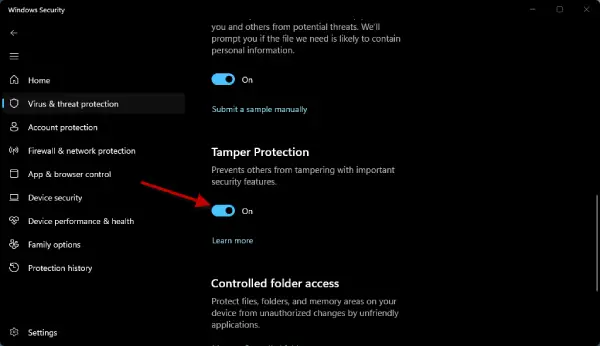
I’m also recommend enabling Cloud-Delivered Protection and the Automatic Sample Submission feature to enhance the security of your PC.
Activating these features will provide robust protection against potential threats. If you are not using any third-party antivirus software on your Windows 11 PC, make sure to turn on all these security features for ongoing defense against malicious activities. This comprehensive approach will help safeguard your system and ensure a safer computing experience.

