

You’ve spent an hour tweaking your document layout, but something still feels off. That heading seems to float slightly to the left, or your text doesn’t quite line up with your column edges. You’re not imagining it—and you’re definitely not alone in noticing.
The culprit? You’re flying blind. Without a visual guide showing where text is actually allowed to live in your document, you’re essentially guessing where the margins and text areas are. It’s like trying to park a car in the dark without headlights.
Meet Your New Layout Best Friend Text Boundaries
Microsoft Word has a hidden feature that acts like invisible rulers for your entire document: Show text boundaries. When you turn it on, faint dotted lines appear around every area where text can sit—your main body, headers, footers, and columns. Suddenly, you can see exactly where everything should go.
This feature is a game-changer if you’re building anything with structure. Working on a form with multiple sections? Creating a newsletter with columns? Designing a template that needs pixel-perfect alignment? Text boundaries show you the actual space you’re working with instead of leaving you to guess.
How to Turn On Text Boundaries in Word (It’s Easier Than You Think)
Getting to this feature takes just a few clicks:
1. Open your Word document and click the File menu
2. Select Options and on the popup window click Advanced option.
3. Scroll down to the “Show document content” section
4. Check the box next to “Show text boundaries”
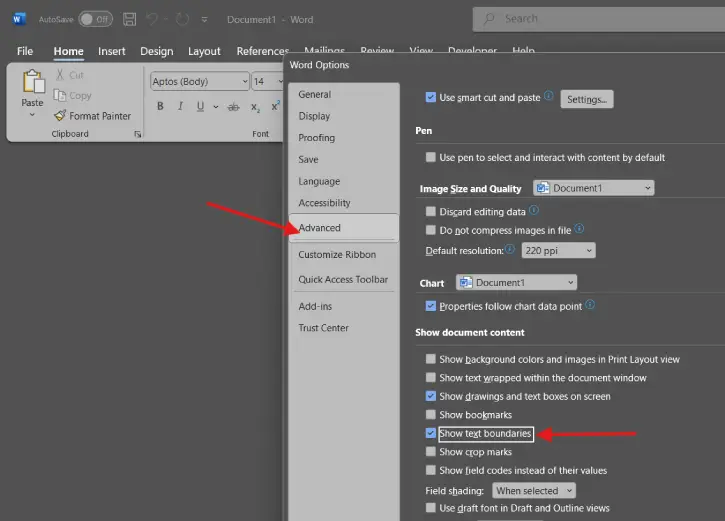
5. Done. Your document now has a helpful visual overlay showing every text area.
A Word of Caution
Don’t leave this on permanently. The dotted lines are helpful when you’re actively working on layout, but they’ll clutter your screen and make your document harder to read if you keep them visible all the time. Think of it as a tool you pull out when alignment matters, then tuck away when you’re happy with how things look.
The Bottom Line
Small features like text boundaries can save you from hours of frustration and endless tweaking. If your document layout has ever felt slightly off but you couldn’t quite figure out why, this is your answer. Next time alignment is giving you grief, remember: Word is ready to show you exactly where your text should sit.

