

ChatGPT is a widely used AI assistant that answers questions and provides helpful information on many subjects, making learning more enjoyable and easier. The Background Conversation for smartphones and the Companion Window feature for desktops help make ChatGPT even more fun to use.
What is ChatGPT’s Background Conversation for Smartphone?
The ChatGPT mobile app includes a Background Conversation feature that enables your chats to continue even when you switch to another app or lock your phone. The advantage of this feature is that you can interact with the chatbot about whatever content you’re looking at even if your phone is locked.
For example, while viewing a webpage, checking a WhatsApp message, or even observing your surroundings, you can interact with ChatGPT. You can ask your AI assistant questions without needing to return to the ChatGPT app, facilitating a seamless flow of information and interaction.
However, for privacy reasons, the background conversation feature is disabled by default, so you’ll need to enable it if you wish to use it.
ALSO READ: ChatGPT Search is Now Free: How to Make it Default Search Engine
How to Turn On ChatGPT’s Background Conversation Feature
1. Open the ChatGPT app on your smartphone.
2. Tap the two-line menu icon located in the top-left corner.
3. Then, select your account name at the bottom of the menu.
4. Choose ‘Voice’ and toggle the ‘Background Conversations’ option to enable it.
5. If you want to limit ‘Voice mode’ chats to the ChatGPT app, simply toggle it off again.
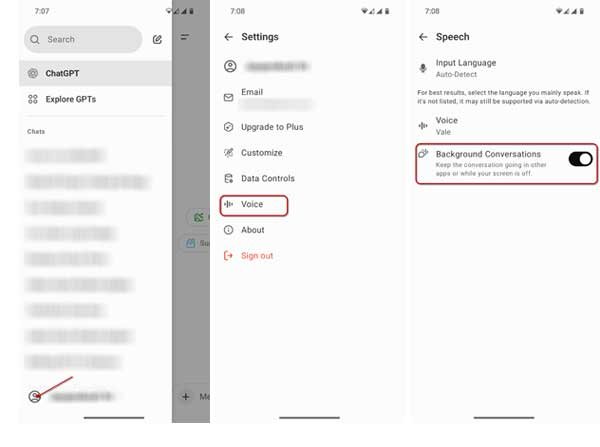
Note that, on the Voice settings page, users can easily customize ChatGPT’s default voice. To do so, simply tap on “Voice,” browse through the available options, select your preferred voice, and then tap “Done” to save your selection.
ALSO READ: Launch ChatGPT From any Screen on Your Computer Using Companion Window Feature
ChatGPT’s enhanced voice mode is capable of recognizing various accents and speaking styles, adapting to the speed of your speech, and responding with suitable emotional tone in its voice. Overall, this advanced voice mode allows ChatGPT to sound more human and natural during verbal interactions.

