

Advanced chat privacy is a powerful new privacy feature of WhatsApp that puts you in control of your most sensitive conversations. Whether you’re protecting personal messages or managing a group chat, this feature prevents your chats from being shared or exported outside of WhatsApp. Here’s how to enable or disable in WhatsApp private or group chat.
Before get into the article, let us learn whats is WhatsApp advanced chat privacy. It is a built-in security feature designed to restrict how your messages and media can be shared outside of WhatsApp. When enabled on a specific chat or group chat, photos and videos sent in the chat won’t automatically save to your device gallery. Meta AI cannot access, summarize, or create images based on this chat’s content, and chats cannot be exported or shared outside of WhatsApp.
This feature is available on both Android and iOS devices and can be enabled individually for each chat or group. For group conversations, only group admin can enable or disable advanced chat privacy.
How to Enable WhatsApp Advanced Chat Privacy
Advanced Chat Privacy is disabled by default, so you’ll need to activate it manually for each conversation. Before you start, ensure your WhatsApp is updated to the latest version.
1. Open WhatsApp on your phone
2. Navigate to the chat you want to secure (individual or group)
3. Tap the contact or group name at the top of the screen
4. Scroll down to find the Advanced Chat Privacy option
5. Toggle the switch to enable the feature
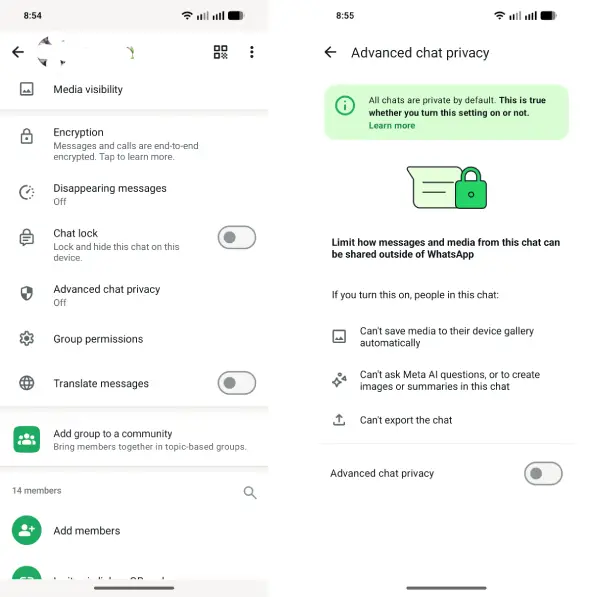
Once activated, all three protections take effect immediately.
To disable WhatsApp advanced chat privacy,
- Open WhatsApp on your phone
- Navigate to the chat where you enabled the feature
- Tap the contact or group name at the top
- Scroll down to Advanced Chat Privacy
- Toggle the switch to disable the feature
Note that WhatsApp does not currently offer a bulk option to enable or disable Advanced Chat Privacy across multiple chats simultaneously. You must manage this setting individually for each conversation. While this requires more manual effort, it also gives you control over which chats need the extra protection.
Conclusion
Advanced Chat Privacy empowers you to secure individual conversations without affecting your entire WhatsApp experience. By enabling this feature selectively, you maintain flexibility while protecting your most sensitive chats from unwanted sharing, AI analysis, or export. Remember that it requires manual activation for each chat and can only be managed by group admins in group conversations.

